

Create and manage automations
Owners and admins create automations from a form, or by asking the Assistant, for example “Every week, scan for outdated dependencies and open an issue.” An automation the Assistant creates is on at once and uses credits the next time its trigger matches.
Create an automation
Section titled “Create an automation”- In the sidebar, select Automations, then New Automation.
- Enter a Name and, if you want, a Description.
- Leave Enable agent selected to turn the automation on when you save.
- In Instructions, describe what devlo should look at and what it should do.
- Pick a Model, or keep the default. More capable models use more credits.
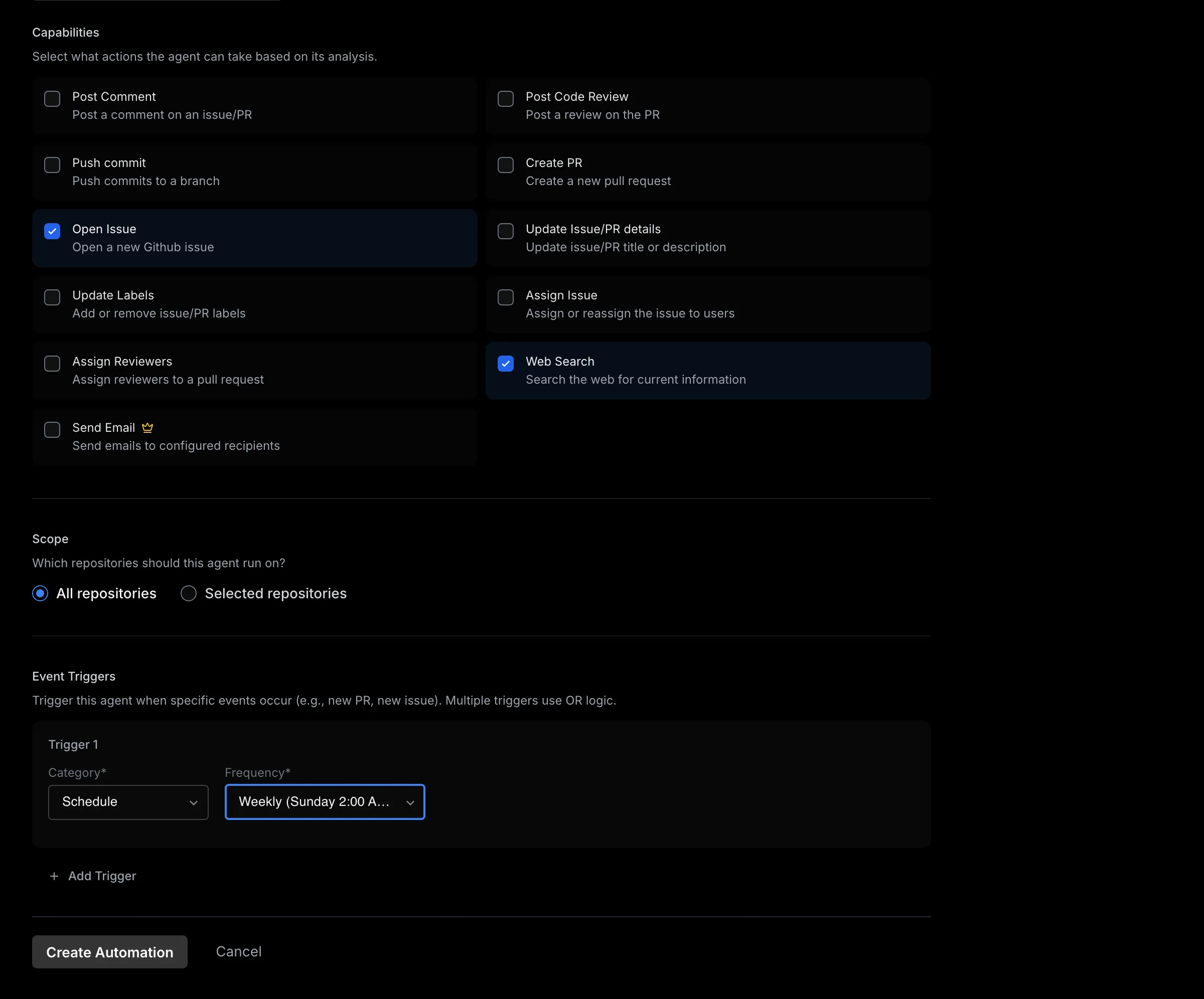
- Under Capabilities, select the actions devlo may take. For Send Email, type each recipient and press Enter.
- Set Scope to All repositories or Selected repositories.
- Under Event Triggers, set Trigger 1 to the event or schedule you want, and add filters to narrow it. Trigger 1 starts as New Pull Request; if you add a trigger instead of changing it, the automation also runs on new pull requests.
- Select Create Automation.
Write good instructions
Section titled “Write good instructions”- Say what to look at, what to do, and what to leave alone.
- Name the output: “Post one comment” or “Open one issue per finding”.
- Match your instructions to the capabilities you select.
- Start with one repository and one trigger, then widen the scope.
- Put conventions every run should follow, such as test commands, in
AGENTS.md.
Test an automation
Section titled “Test an automation”For a scheduled automation, select the play button next to it in Automations, or Test run on its Configuration tab. For an event automation, cause the event in a test repository.
See runs
Section titled “See runs”In Automations, select an automation, then the Runs tab. Each run links to what it produced and shows the credits it used. A run uses credits for the work it did, even if it stops early or doesn’t finish. Select Show trace to see the steps devlo took. If a run you expected isn’t listed, see If an automation doesn’t run.
The Code Reviewer’s Runs tab lists reviews instead.
Turn an automation on or off
Section titled “Turn an automation on or off”In Automations, select an automation’s Active or Inactive status. Built-in automations always show Active; to turn one off, clear Enable agent on its Configuration tab and select Save.
Delete an automation
Section titled “Delete an automation”Deleting can’t be undone and removes the automation’s runs and traces; to keep them, turn it off instead. To delete one, select the trash icon next to it, then confirm.
Related
Section titled “Related”Also known as: new automation, custom agent, instructions, Enable agent, model, run history, trace, test run, turn off an automation, disable, delete an automation, failed run.