

Organizations and members
You have a personal account, plus an organization for each GitHub account or organization where the devlo GitHub App is installed. Pick an organization in the Github menu in the sidebar.
| Personal account | Organization | |
|---|---|---|
| Created | When you sign in | When you install the devlo GitHub App |
| Holds | Your plan, credits, and projects | Repositories, members, automations, integrations, and analytics |
Until an organization has its own subscription, it uses the plan and credits of the person who installed devlo. See Whose plan applies.
The person who installed devlo is the owner. Owners and admins manage members on Settings > User Management. Seats don’t change your price.
| Owner | Admin | User | |
|---|---|---|---|
| See and manage the organization in the app, including analytics, settings, automations, integrations, and billing | Yes | Yes | No |
| Add and remove members | Yes | Users only | No |
| Change roles | Yes | No | No |
| Use devlo from GitHub, Jira, Slack, and chats | Yes | Yes | Yes |
To use @devloai on GitHub, every role also needs write access to the repository. Users need it for repository chats too. To transfer ownership, email help@devlo.ai.
Add a member
Section titled “Add a member”- Go to Settings > User Management.
- Enter a GitHub username and select Add. New members get the user role.
- Select Save Changes. Nothing is saved until you do.
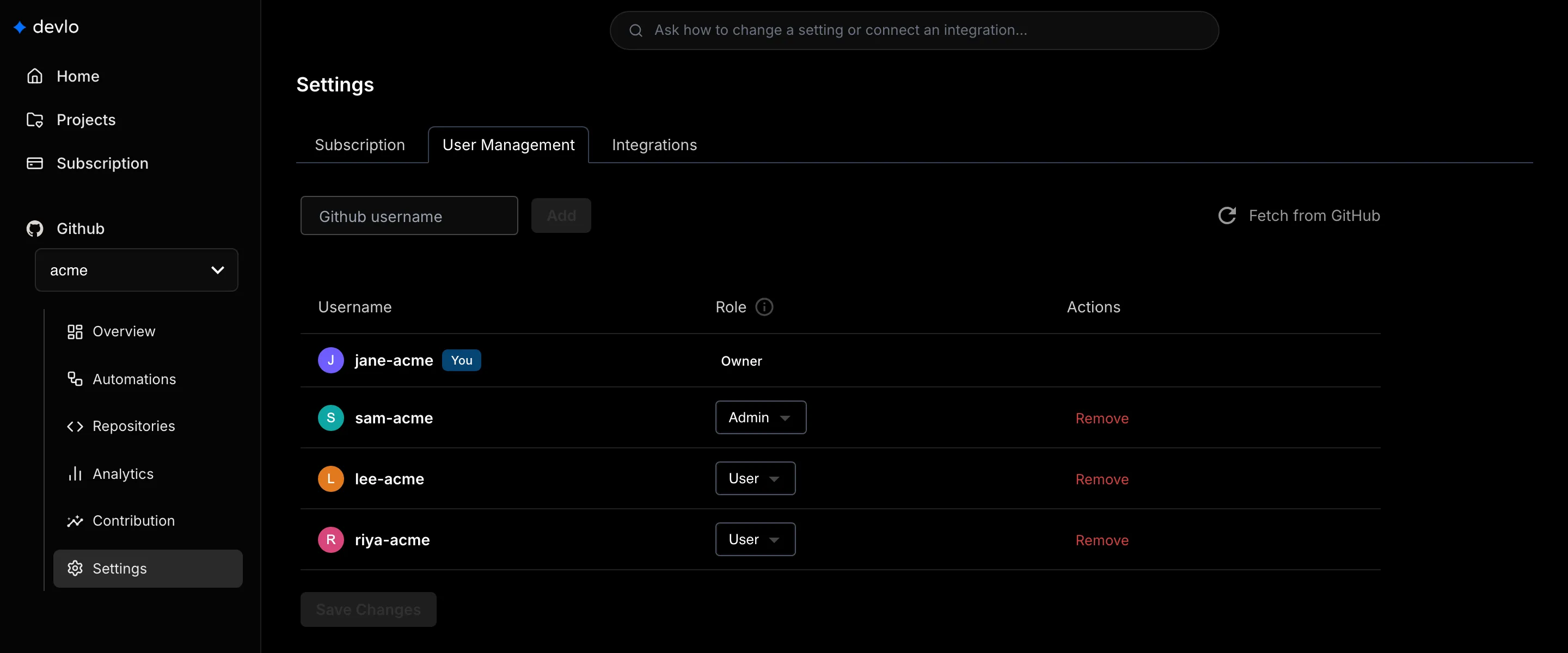
Anyone who triggers devlo on GitHub, for example by opening a pull request that devlo reviews, also gets a user seat automatically.
Change roles and remove members
Section titled “Change roles and remove members”Owners change roles in the Role column. To remove someone, select Remove, then Save Changes. devlo then ignores them on GitHub and doesn’t add them back automatically.
Related
Section titled “Related”Also known as: seats, roles, admin, owner, invite, add your team, user management, remove a member, personal account, GitHub organization, switch organization, organizations.